We live much of our personal and professional lives online. With every new app, email, and social network, we create more accounts—each with passwords that can be guessed or stolen. Data breaches, phishing and account takeovers are daily threats. As a result, choosing stronger security measures is not just wise, it feels more and more necessary every year.
One of the simplest and most effective ways to protect our digital lives is by using authenticator apps. In our experience, adding an extra step beyond a password makes a noticeable difference—many of us have felt that welcome peace of mind after setting up two-factor authentication. This article explains what authenticator apps are, why you need them, and how you can start securing your own accounts today.
Why regular passwords are not enough
Passwords, even long ones, have always been a single line of defense. But in recent years, we have seen how quickly they can be compromised. Common threats include:
- Phishing emails that trick us into giving away our login information
- Reuse of passwords across multiple accounts, making one leak a problem everywhere
- Malware or keyloggers recording keystrokes
- Brute-force attacks that automatically guess common passwords
We have read too many stories about people losing access to their accounts, facing identity theft, or even financial loss after a hack. That sense that “it could never happen to me” fades quickly after the first close call.
Recent data shows passwords alone are no longer enough to keep online accounts safe.
What is an authenticator app?
Authenticator apps add a second layer of protection to your login process. Instead of only asking for your password, a site or service also asks for a one-time code from your authenticator app. This way, even if someone knows your password, they cannot get into your account without the extra code.
Here’s how authenticator apps work:
- You enable two-factor authentication for your account.
- The site asks you to scan a QR code or enter a code in your authenticator app.
- Your app generates a new, time-limited code every 30–60 seconds.
- Each time you log in, you enter your password plus the code from your phone.
An authenticator app is a tool on your phone or computer that gives you short-lived codes, adding a step between would-be hackers and your accounts.
Why should we use top authenticator apps?
We believe authenticator apps offer a balance of strong security and convenience. Unlike SMS-based codes, which can be intercepted through SIM-swapping or other attacks, authenticator apps do not rely on your phone number. The codes stay within the app on your device, updating every few seconds, which makes them much harder to steal.
Some key reasons we recommend using authenticator apps include:
- Better security: The codes are stored locally and update often.
- No network required: Apps generate codes even if your device is offline.
- Compatibility: Most large services and sites now support these apps.
- Speed: Once set up, generating a code takes only a few seconds.
Switching to an authenticator app is one of the quickest ways to greatly increase the safety of your online presence.
Types of authenticator apps and features to consider
There are several types of authenticator apps available today, and they all follow the same core idea—generating temporary codes linked to your accounts. However, features and user experience can vary.
When selecting an authenticator app, here are some features we usually look for:
- Cross-platform support: Does the app work on both Android and iOS? Can you use it on desktop if needed?
- Easy backup or migration: If you lose your phone or upgrade to a new one, can you move your codes?
- Security features: Some apps offer an extra pin or biometric lock for the app itself.
- User interface: Is it easy to add, remove, or find codes quickly?
- Offline capability: Can you get codes without an internet connection?
We have tested several apps over the years and, while they all do the same basic job, a friendly interface and smooth backup process can make a big difference in confidence and comfort.
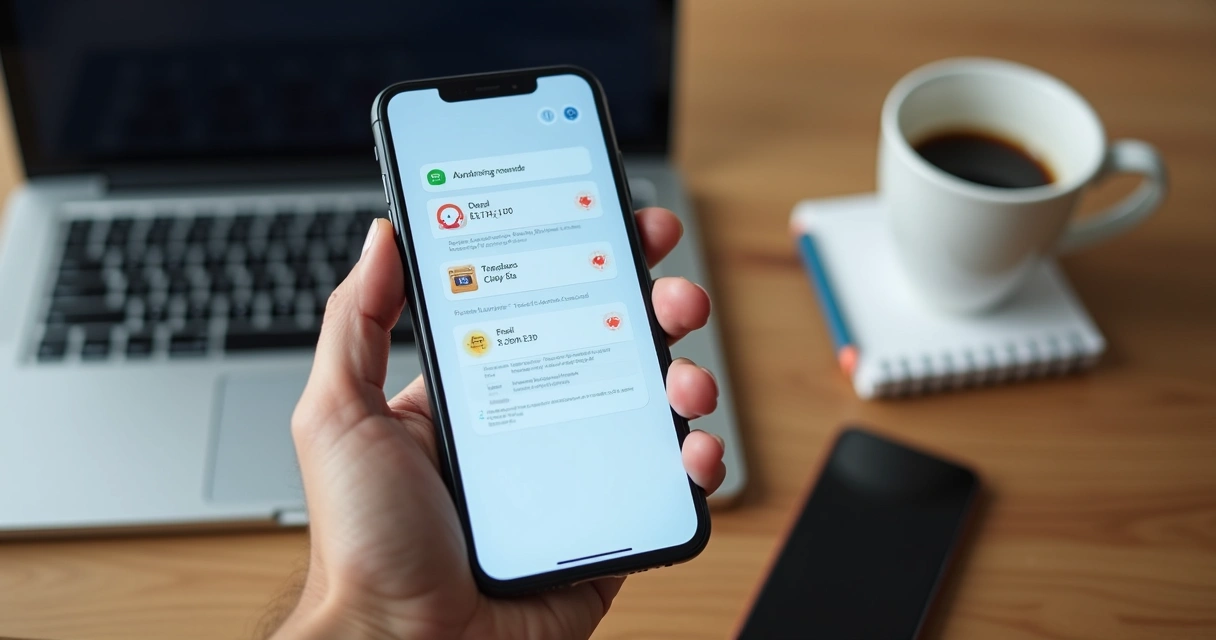
It is always wise to test backup and restore options ahead of time, to avoid losing access to your accounts if your phone breaks or is lost.
How to set up an authenticator app step by step
Setting up an authenticator app for your accounts is usually simple. Here is a clear step-by-step guide to get you started:
- Install the app: Download your chosen authenticator app on your phone or tablet.
- Open your account settings: Log in to the website or service you want to secure. Go to security or login settings and find the option for two-factor or multi-factor authentication.
- Choose app-based authentication: Select the option to use an authenticator app.
- Scan the QR code: The site will display a QR code. Open your app and scan the code with your device’s camera. Alternatively, you might be able to enter a secret key by hand.
- Enter generated code: Your app will show a 6-digit code. Type this code into the website when asked, to finish linking your account.
- Save backup codes: Many services give you backup codes. Store these somewhere safe, but not in your email or cloud storage. These help you get back into your account if you lose your phone.
Once set up, you simply open your app and use the latest code each time you log in.
What to do if you lose your authenticator app?
One of the biggest concerns we hear is: ‘What happens if I lose my phone or uninstall the app by accident?’ This is why the backup codes we mentioned before are so useful.
If you are ever locked out:
- Use any backup codes you have saved during setup.
- Try app recovery options, if your authenticator app supports cloud or account backup.
- Contact the service or website’s support team for help—most major sites have secure recovery methods, but may require proof of identity.
Based on our own experience, a short moment spent storing backup codes or setting up app sync saves hours of hassle later. If you upgrade your phone, migrate your authenticator accounts before wiping or selling your old device.

Best practices for safer logins
Setting up an authenticator app can be done in minutes, but a couple of habits help keep your accounts safer over time:
- Regularly review which accounts have two-factor authentication enabled.
- Secure your device with strong passwords, PINs, or biometrics.
- Never store backup codes or recovery info in your email inbox or cloud drive without extra protection.
- If available, turn on app-specific protection features, like fingerprint or face ID.
- Keep your authenticator app updated for security and new features.
Strong security comes from layers, not just one solution.
Frequently asked questions about authenticator apps
Can I use one authenticator app for all my accounts?
Yes, most authenticator apps support multiple accounts at once. You can manage your work, email, social and cloud logins from a single app.
Are authenticator apps safe on any device?
We find authenticator apps to be safe when the device itself is protected with a PIN, password, or biometric lock. It’s never wise to keep codes on an unprotected phone or one that is shared freely.
What happens if someone steals my phone?
Even if someone gains access to your device, they still need your app or device password, plus those backup codes you stored. We recommend remotely wiping your phone or contacting your account services if this happens.
Conclusion
It takes only a few minutes to set up an authenticator app, but this simple step can prevent countless headaches. We have heard stories from friends and readers alike who say that, after switching, they rest easier at night—and so do we.
Authenticator apps put power back in our hands. They help us keep professional and personal information secure. Try setting up your own authenticator app with the steps above. The sooner you start, the safer your most important accounts will be.