If gaming on a PC has ever felt sluggish or unstable, or you noticed lag at the worst possible moment, you’re not alone. Many of us crave that smooth, immersive gameplay—the kind where every frame and moment counts. From our own hours spent tweaking setups and helping friends, we’ve learned a few steps that really make a difference. Here, we share a practical pathway to help your PC deliver that better gaming experience.
Check and meet minimum requirements
Before trying to improve anything, we always encourage checking what your games actually need to run well. Each title has its own requirements, and sometimes, no matter what we do, outdated hardware just can’t keep up.
- Check your game’s minimum and recommended specs. You’ll find this on the store page or game documentation.
- Compare with your PC’s specifications (processor, graphics card, RAM, storage).
- If your system falls short in key areas, no tweak will bring miracles—a hardware upgrade might be necessary.
Hardware sets the limits, tweaks bring out the best.
Keep your drivers up to date
Surprisingly often, people neglect this. Updated drivers, especially for your graphics card, can boost performance and resolve hiccups overnight.
- Identify your graphics card model and installed drivers.
- Visit your component maker’s official website and download the latest driver for your card and operating system.
- Install and reboot. Don’t skip the restart—it completes the installation.
- Repeat for motherboard chipset and audio drivers as well, if needed.
Newer drivers are often optimized for the latest games and offer performance boosts or bug fixes.
Adjust in-game settings
This is usually where we see the most immediate impact. Most games let you tweak visual settings for a balance between looks and speed—sometimes, just reducing a single demanding setting makes all the difference.
- Start your game and visit the settings menu.
- Focus on graphics options like resolution, shadows, anti-aliasing, and texture detail.
- Lower settings one at a time and test performance after each tweak.
- Turn off motion blur, film grain, or background processes in-game for a crisper and faster result.
It’s rare for max settings to be the best choice for both appearance and speed.
Clean up your system
Old files, background apps, and malware can silently drag down a PC’s speed. We usually set aside a few minutes each month to check for clutter and unwanted processes.
- Uninstall unused programs and games taking up space.
- Run a reputable malware scan to catch anything suspicious.
- Delete temporary files using your system’s disk cleanup tool. Pay special attention to recycling bin, downloads, and cache folders.
It’s worth double-checking what starts up with Windows, too. Type “msconfig” or check the Task Manager under the Startup tab, and disable what’s not needed.
Your PC breathes easier with less clutter.
Prioritize your game in Windows
Sometimes, Windows puts background processes first. We’ve found that setting the game as a high-priority app can help.
- Open Task Manager (Ctrl + Shift + Esc) once your game is running.
- Locate your game’s process, right-click, and set priority to “High”.
This gives your game more system resources—just don’t use “Realtime” unless you want trouble.
Close unnecessary background applications
Streaming, browsers, chat apps, and downloaders eat precious RAM and CPU, even when idle. We always remind ourselves to close anything we’re not using before starting a big game session.
- Check your system tray for open apps.
- Shut down everything non-essential. Especially resource-intensive tasks like video rendering or backups.
Occasionally, a sneaky app will restart in the background. We’ve spotted this many times—so it’s worth monitoring while playing.
Adjust Windows settings for better performance
Windows doesn’t always default to high performance mode. There are small tweaks we often recommend:
- Switch power plan to “High performance” in Control Panel > Power Options.
- Disable visual effects (like animated windows, shadows, and transparency) from System > Advanced system settings > Performance settings.
- Ensure game mode is enabled (Settings > Gaming > Game Mode).
Upgrade hardware when necessary
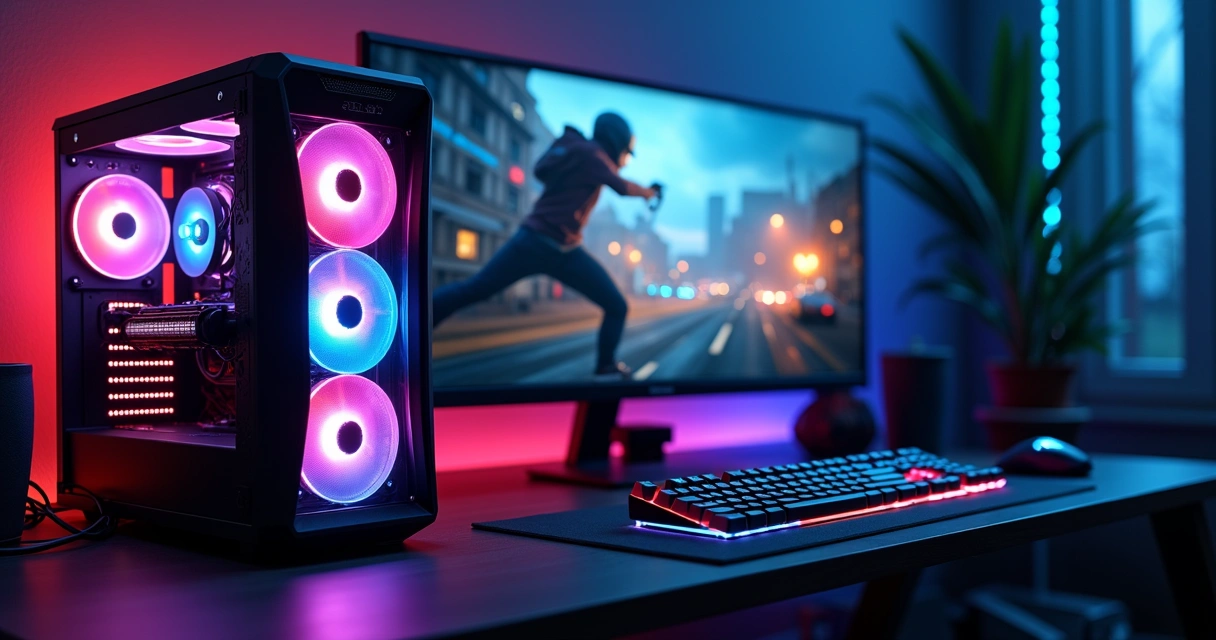
We can often gain a lot just from tweaking settings, but there are moments when only hardware upgrades help. If your game freezes or stutters even after all adjustments, you may need to look at adding or replacing a part.
- Add more RAM if your games often max it out (16GB is now common for gaming).
- Consider a better graphics card if your current one is more than a few years old.
- Replace an old hard drive with an SSD for faster load times and system responsiveness.
Sometimes, just swapping in a solid-state drive feels like a new machine.
Keep your PC cool and dust-free
Heat is a performance killer. We’ve cleaned our fair share of dusty fans, and each time, it’s like giving the computer new life.
- Check your case fans for dust or blockages at least every few months.
- Use compressed air to clean fans, vents, and heat sinks. Don’t forget graphics and CPU coolers.
- Make sure your PC stays in a spot with good airflow, not tucked up against a wall or blanket.
Dust builds up quietly—and can crash your game at the worst moment.
Update your games and operating system
Game patches and Windows updates are more than security; they often bring speed improvements or bug fixes for gaming.
- Set your games and system to update automatically, or remember to check before each session.
- Reboot after large updates to clear memory and apply fixes.
We’ve sometimes noticed after patches, even older games run more steadily, as developers squeeze more from what you have.
Network tweaks for online play
For online gaming, a poor network can ruin everything, no matter how strong your PC is.
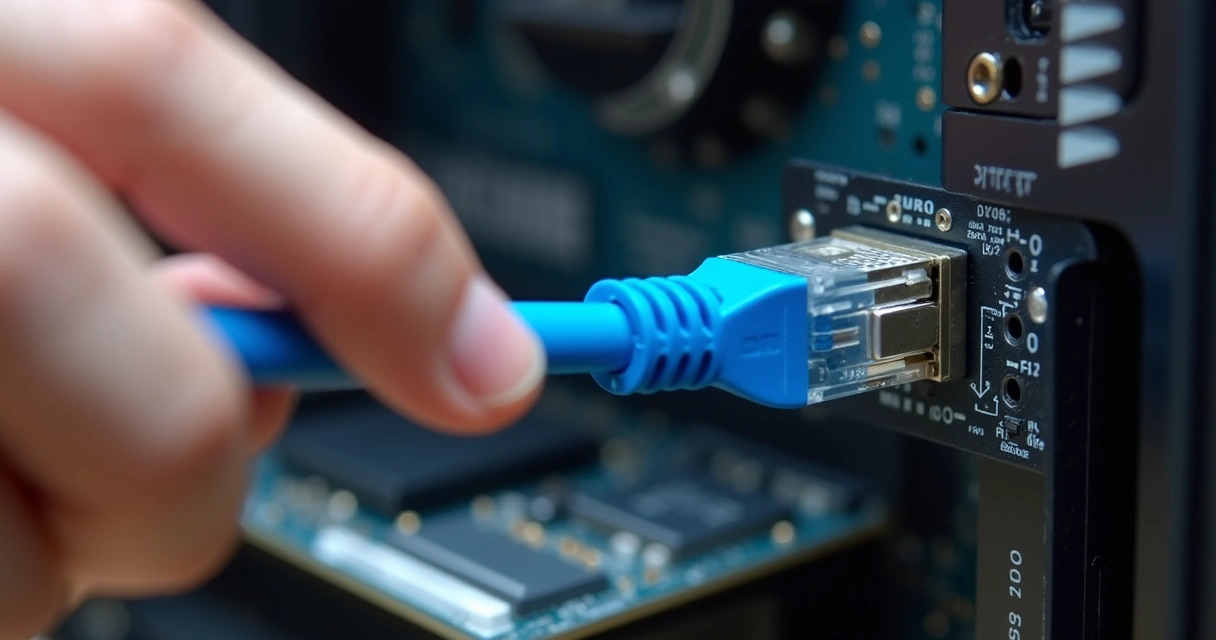
- Whenever possible, use a wired Ethernet connection instead of Wi-Fi.
- Close downloads, streams, or large file transfers elsewhere on your network before gaming.
- Restart your modem and router now and then to clear any glitches.
Test your results and enjoy
After all these steps, it always makes sense to test. Open your favorite game and see how it feels—move quickly, jump into a busy area, and watch for any drops in smoothness or sudden stutters. Sometimes, we like to run a built-in benchmark if the game has one, just to get numbers to compare with before and after tweaking.
Small changes, tested often, bring big results.
Game performance isn’t about a single fix—it’s many small improvements that add up.
Final thoughts
We’ve gone through these steps ourselves, both at home and with friends, and we’re always surprised by how each PC reacts a little differently. The best gaming sessions come from experimenting and patiently tweaking to match your own system and play style. Sometimes, there’s no perfect recipe, just a little effort and some trial and error. If you ever feel stuck, step back and take another look—you may spot something small you missed, and that can make all the difference. Game on.