We have all been there—sitting in front of a bright PC screen, hands hovering above the keyboard and mouse, eyes darting between the action on-screen and the dozens of buttons laid out before us. The world of PC gaming can overwhelm even the most enthusiastic newcomers. But once you get a feel for the controls, something clicks. The game becomes a playground, the keyboard a brush, and you’re painting your own story in real time.
Why PC game controls matter
Before we even begin talking about keys and buttons, let’s acknowledge the truth: the way you control your character dramatically shapes your experience in any game. Mastering controls means faster reactions, better accuracy, and the kind of confidence that makes even challenging titles feel fun instead of intimidating.
Controls are the bridge between player and game.
In our experience, the right setup quickly becomes an extension of your hands and mind. But what does it really take to get there?
Understanding the basics: Keyboard and mouse
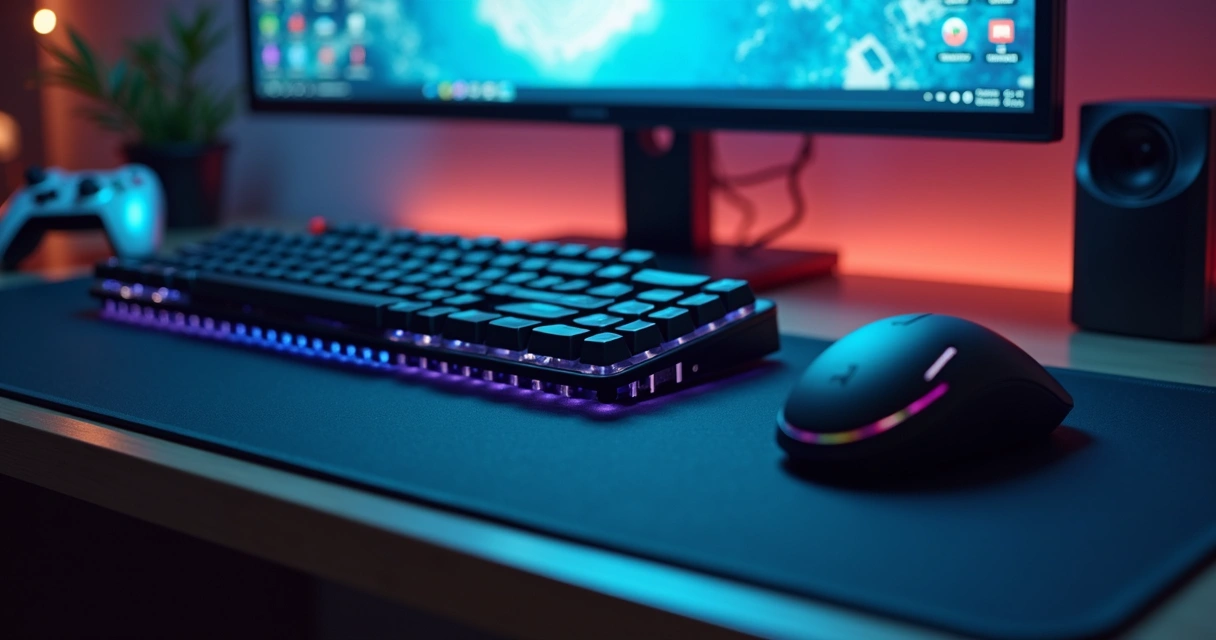
Let’s start with the standard setup for most PC games—the keyboard and mouse. This combo gives remarkable precision and speed, especially for genres like first-person shooters or strategy games. But to unlock that power, you need to get comfortable with how the keys and mouse work together.
- Keyboard: Generally, movement is mapped to the WASD cluster (W = forward, A = left, S = back, D = right). But there’s more—spacebar for jumping, shift for running, control or crouch, and a host of other actions mapped across nearby keys.
- Mouse: While your right hand works the mouse to look around or aim, the mouse buttons (usually left and right click) function as your main actions—shoot, select, or interact. Many gaming mice add two or more thumb-side buttons as shortcuts.
It can feel like a lot. It’s okay if you press the wrong key at first—we all do. What’s needed is patience and a plan for practice.
Customizing keybinds for comfort
One of the greatest freedoms on PC is the ability to change almost every control to fit your hands and habits. We recommend spending time in the settings menu of each game to find what works best for you. Some people move crouch from Control to C, or swap jump to another nearby button if their fingers get tangled. Others assign special actions to mouse side buttons, making movement smoother.
- If you’re left-handed, remap the WASD cluster to arrow keys or another section that feels natural.
- Some players like to have a quick melee attack close to their movement fingers—remapping it to “F” or “E”.
- Experiment with sensitivity for the mouse; higher sensitivity lets you move the camera quickly, while lower settings mean more control but slower turns.
Take your time to test, tweak, and repeat the process until your controls become second nature. Once your setup feels right, you’ll notice a huge difference in response and comfort.
Dealing with controllers and alternative devices
While keyboard and mouse are popular, we know some games and gamers prefer controllers or even special gear like racing wheels, flight sticks, or accessibility devices. Most PC games support a wide range of input methods.
- Controllers: Plugging in a USB or Bluetooth controller can make certain games, especially action-adventure or platformers, much easier to play. The control layout will often mimic consoles, with triggers, shoulder buttons, and analog sticks.
- Custom gear: For racing, flight, and simulation games, special wheels, pedals, and joysticks exist, each with their own unique control schemes. We suggest reviewing each game’s input settings if you have this gear.
- Accessibility devices: For those with unique needs, a variety of switches and adaptive controllers can reassign game inputs. It’s worth exploring these options—comfort always comes first.
When switching from keyboard and mouse to a controller, we recommend starting with easier difficulty levels to get used to the feel. The transition can be jarring at first, but your hands adjust quickly.
Building good gaming habits
Learning controls is about more than button placement. It’s almost like teaching your hands a dance, one step at a time. Here’s what we found works for most people:
- Start simple. Pick one game to practice. Don’t try to learn ten setups at once.
- Use training areas or tutorials. Most games offer areas where you can safely get used to controls before facing real challenges.
- Practice small movements—then add complexity. Focus first on moving, looking around, and handling a single action (like shooting or jumping). Add more actions as you gain muscle memory.
- Make a habit of warming up. Spend a few minutes running through basic movements at the start of every game session.
- Review your mistakes. If your hand keeps slipping off the right key, consider changing its placement.
Repetition is the quiet key to mastery.
In our experience, progress comes faster if you break sessions into short, focused bursts. Trying to force marathon sessions might do more harm than good when you’re just starting out.
How to handle advanced settings?
Once you are comfortable with the very basics, you may want to tweak deeper settings. Modern games offer an array of choices meant to help you play your way:
- Mouse acceleration: Some games let you turn this on or off. Turning it off gives more predictable, precise movements, which we find helpful for accuracy-heavy games.
- Key macros: These let you assign complex actions or combos to a single key or button. It can help with repeated actions or if you have trouble reaching certain buttons.
- Dead zones (for controllers): Adjusts the sensitivity of analog sticks, so slight touches aren’t read as movement. Tweaking this can prevent “drift,” where the camera or character moves unexpectedly.
Of course, adjusting advanced controls comes later for most—all in good time.
Overcoming common challenges
It’s normal to get frustrated when you press the wrong button, miss a jump, or forget how to switch weapons. We’ve heard it from many users. And truthfully, we’ve all fumbled our way through busy key layouts more times than we’d like to admit.
- If you’re struggling with finger reach, remap keys that are hard to press or use alternatives like mouse side buttons.
- If you get confused by too many keys, write out a cheat sheet and keep it near your monitor. It seems simple, but seeing the keys can help cement them in memory faster.
- If you’re slow to react, spend extra minutes doing one action repeatedly—like strafing left, then right—until it feels natural. Small “micro-drills” really do make a difference, in our experience.
The fact is, mistakes are a normal part of learning. Little by little, you notice fewer errors and more moments of control. It’s a rewarding feeling when your hands do what your mind imagines.
When and how to update your setup
At some point, your skills will start pushing up against your hardware. Maybe your mouse is a bit too slow or your keyboard isn’t responsive. There is no need to worry about the “best” or fanciest accessories when you start out, but over time, you might want more comfort or precision.
When you’re ready, we suggest:
- Testing friends’ setups (if possible) to get a feel before making purchases.
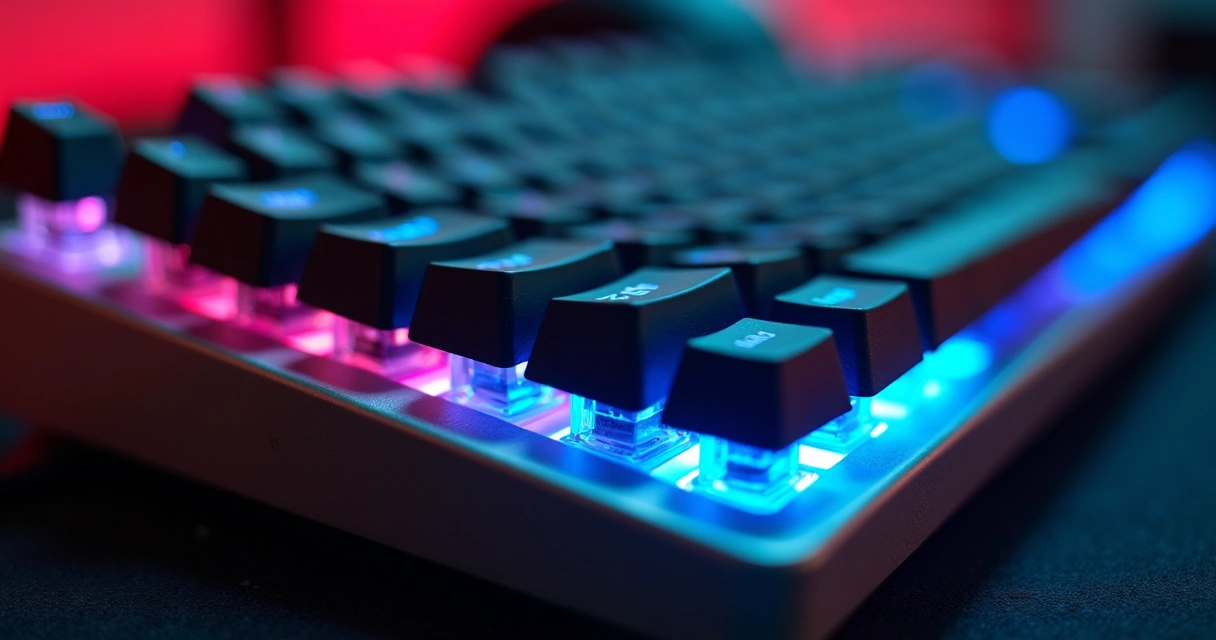
- Looking for adjustable DPI on mice and mechanical or membrane keyboards depending on your finger comfort.
- Being mindful not to overspend in early stages. The best gear is the one you feel at home with—not the flashiest one on the market.
Keeping your setup fresh
Games update all the time, and sometimes an old setup needs tweaking. Stay flexible and don’t be afraid to experiment with controls or hardware every once in a while. Even experienced players reconfigure their keys or adjust mouse speed to fit new game genres or personal changes.
Don’t forget to check for new features after game updates—sometimes a small setting can make a big difference. And keep a sense of humor. Gaming should feel like fun, not a chore.
Final thoughts: Your hands, your rules
When all is said and done, the best way to master PC game controls is to listen to your own comfort and go at your own pace. Some days you might feel clumsy; on others, you’ll hit the keys as if you were born knowing them. It’s an ongoing process, and maybe that’s what keeps games fresh and exciting for us all.
Comfort turns effort into instinct.
In the end, our experience tells us that the best game controls are the ones that disappear from your conscious mind—leaving only the enjoyment of play. And that’s the real victory.