Setting up multiplayer in PC games used to be complicated. Today, it’s much easier, but sometimes the first steps still leave us scratching our heads, especially when we want to solve it quickly and just get to playing. In our experience, most people just want the simple version: “How do I play online with friends, right now?” Let’s break it down together, step by step, with a few stories and personal touches along the way.
Why multiplayer matters to us
We’ve noticed that, for many, gaming isn’t just about challenge or competition. It’s about connection. Multiplayer brings people together – sometimes from across the world, but often from across the room. We’ve laughed through cooperative missions, screamed during tense showdowns, and sometimes even bonded over small technical troubles before finally getting into a game. That’s part of the journey!
But while the destination is fun, those early steps – the setup – should never feel like a barrier. Luckily, in our view, the process doesn’t have to be confusing. We’ve gathered the basics and made them as clear as possible, so you can get to the good part: playing together.
First things first: What do you need?
To enjoy multiplayer modes in PC games, you generally need three things:
- A compatible game (one with multiplayer capability)
- A stable internet connection (unless you’re playing local LAN or split screen)
- An account with the right platform or service (depending on the game)
These days, most popular games offer easy menus and integrated friends lists, but every game has its small differences. Still, the setup tends to follow a similar pattern.
Step 1: Update everything before you begin
This seems obvious, but it really isn’t. We’ve all had nights where someone spends the first hour doing updates while everyone else waits. That’s never fun.
blockquote“Always update your game and drivers before trying multiplayer for the first time.”
Preparation saves frustration.
Modern games receive patches and fixes all the time. Updating your game (and even your graphics drivers) ensures you avoid mysterious errors or empty online lobbies. If you’re using a launcher, check for downloads beforehand. If you haven’t played in a while, you might trigger a big patch. Better early than late.
Step 2: Choose your multiplayer mode
Some games offer a clear “Multiplayer” button. Others split the experience: co-op, versus, ranked, or custom games. Here’s how we usually see it structured:
- Online matchmaking: Play with or against random players worldwide.
- Private lobbies/rooms: Invite your friends directly and play together, often with custom rules.
- LAN/local: Play with people on the same network, sometimes without the internet.
Each option gives you different levels of privacy, control, and social experience. If you want a relaxed game night with friends, private lobbies are the go-to choice.
Step 3: Add your friends
Most PC games now use built-in friends lists or connect to platform-level lists. This lets you:
- Search for your friend’s username or email
- Send an invite (sometimes called a “friend request”)
After your friend accepts, you’ll often see them in a list within the game or platform.
Don’t forget: Sometimes you need to add friends both in-game and on the launcher.
Some games require you to use both. For example, you might add someone on the game’s network and also through your platform account, depending on security features. We know it sounds silly, but double-check if you can’t see your friend right away.
Step 4: Create or join a lobby
With most modern PC games, setting up a multiplayer lobby is as easy as:
- Clicking “Multiplayer” in the main menu
- Selecting “Create Lobby” or “Invite Friends”
- Sending invites from your friends list
Your friends receive a notification to join. When everyone’s together, you can usually change settings, pick maps, or set up custom rules.
“A lobby is like your private waiting room before the game starts.”
Once everyone’s ready, you start the match. That’s it! In our experience, the hardest part is organizing the group – not the technology.
Step 5: Handle voice and text chat
Communication can be the difference between victory and utter chaos. Most games now offer built-in chat and voice features, but sometimes your team may prefer using a different app. Both options work.
“Talking together turns gaming into teamwork.”
Check your audio settings, test your mic, and agree with your friends on where to meet: in-game, or somewhere else.
Step 6: Troubleshooting the most common problems
Even with all the improvements, multiplayer can have hiccups. Here are the top problems we’ve seen, plus quick fixes:
- Can’t see or join friends: Check your region setting and privacy rules. Sometimes, friends are in a different server region or their profile is set to private.
- Error messages about network or NAT: Restart your router or check your firewall – some games need specific network ports open.
- Lag or rubber-banding: Make sure no one is streaming or downloading large files on your network during gameplay.
- Game keeps updating forever: Pause unnecessary downloads, and if possible, connect by wire instead of Wi-Fi for updates.
“Most connection issues come from network settings, ports, or firewalls.”
If problems persist, sometimes restarting the launcher or even your computer solves things faster than you’d expect. Yes, seriously. We’ve tried almost everything after midnight gaming sessions that start off rocky but finish smoothly.
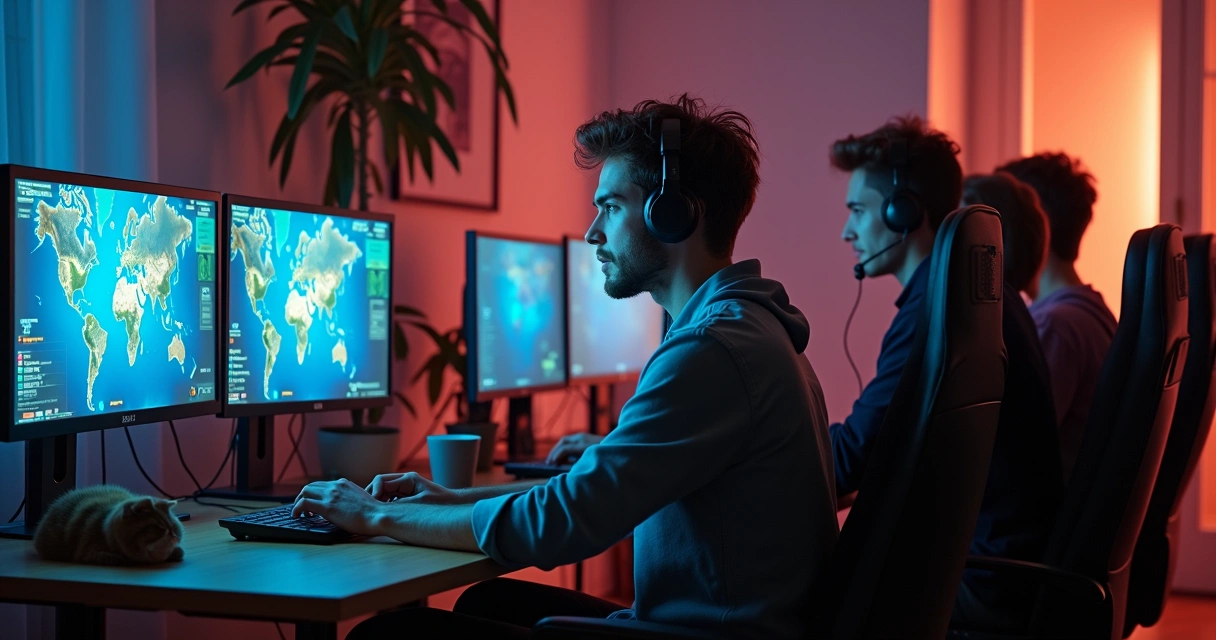
Tips for a smooth multiplayer gaming night
From our evenings spent playing together, we picked up a few habits to make every session smoother:
- Communicate plans early. Even a quick message in the group chat makes a big difference.
- Decide who’s hosting. The host’s internet speed and PC usually matter, especially for private lobbies.
- Start on time, if you can! (We know it’s hard.)
- Share the lobby code or invite link quickly.
- Set boundaries for new or casual players. Not everyone likes competitive play.
Laughing over glitches, sharing quick victories, or even helping someone who’s new to the game – that’s where the best moments come from. In our own multiplayer sessions, some of the most memorable times are the ones where things didn’t go perfectly.
What about cross-platform play?
More and more PC games offer cross-platform options, so you can play with friends on consoles or even mobile devices. Here are a few considerations if you’re trying cross-play:
- Check if your game supports cross-play, and whether special settings are needed.
- Sometimes, you may need to set up a separate game account if your friends use different hardware.
- Voice chat may work differently across platforms, so agree on the best option for everyone.
“Cross-play requires everyone to be on the latest update and to accept invites through the right system.”
Certain games may restrict cross-play for ranked modes or if you want to play with only one platform’s users. These little details can trip up even experienced gamers.
Local versus online multiplayer: Differences and fun factors
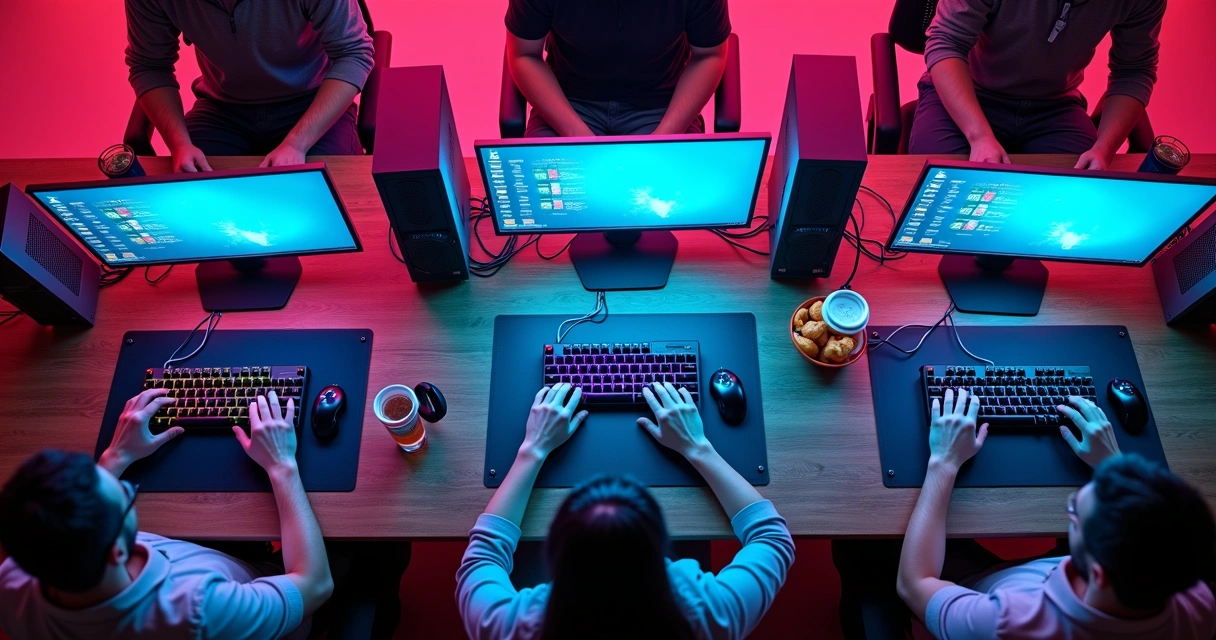
Local (split screen or LAN) multiplayer is a classic option for game night in person. You can often plug multiple controllers into one computer or connect several PCs to a local network without the internet. It feels old-school, but in a good way.
- LAN play is nearly lag-free but usually requires everyone to be in the same home or room.
- Split screen lets several people play on the same device, but you’ll need controllers and probably a big monitor.
Sometimes, getting local multiplayer set up means tinkering with display settings or finding the right cables, but when it works, nothing beats that in-person experience. We still remember the buzz from a great local match, everyone yelling at the screen and the dog looking absolutely unbothered.
In summary: Multiplayer isn’t as hard as it seems
At first, setting up multiplayer can seem mysterious. But in our experience, there’s a real rhythm to it – update, connect, invite, and play. Sure, you might run into the occasional hurdle. But with the right mindset and maybe a bit of patience, those small setup steps begin to feel natural.
“Multiplayer games bring people together, both on and off the screen.”
If in doubt, keep it simple. Start with private lobbies, invite your friends, and don’t be afraid to laugh if something doesn’t work the first time. After all, the game is about having fun together – everything else is just setup.