Every PC gamer knows that the difference between a good session and a truly great one can come down to just a few tweaks. Sometimes, it’s the smallest changes in our setup that lead to big improvements, whether in performance, comfort, or the sheer joy of play. In our years of following community tips, testing gear, and tinkering with our own systems, we’ve found that most players overlook small adjustments that could actually change their entire gaming experience. So, here we share the top seven smart settings we believe every PC gamer should try customizing—today, not tomorrow.
1. Adjust display refresh rate and game FPS limitations
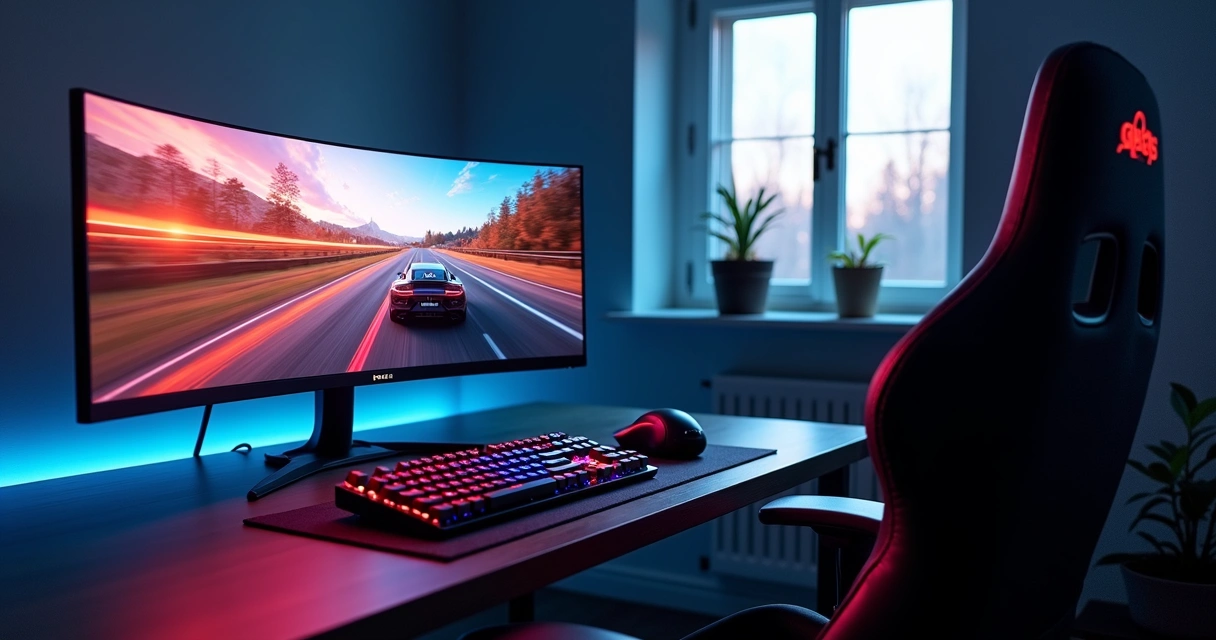
We almost always meet gamers who run their brand-new monitors on lower settings than they support. It feels like a missed opportunity. By making sure the refresh rate is set correctly and aligning it with your game’s frame rate cap, you’ll enjoy much smoother visuals.
- Go to your PC’s display settings and select the highest refresh rate your monitor allows.
- Check each game’s video settings for a frame rate (FPS) cap and adjust it to match your monitor’s refresh rate (like 120Hz, 144Hz, or higher).
This simple step can often remove strange flickers and make movement look crisp and clear. Matching your in-game FPS to your display refresh rate helps avoid screen tearing and odd delays. Of course, every game and hardware situation can be a bit different, but this adjustment almost always leads to an immediate boost in smoothness.
2. Customize mouse sensitivity and DPI settings
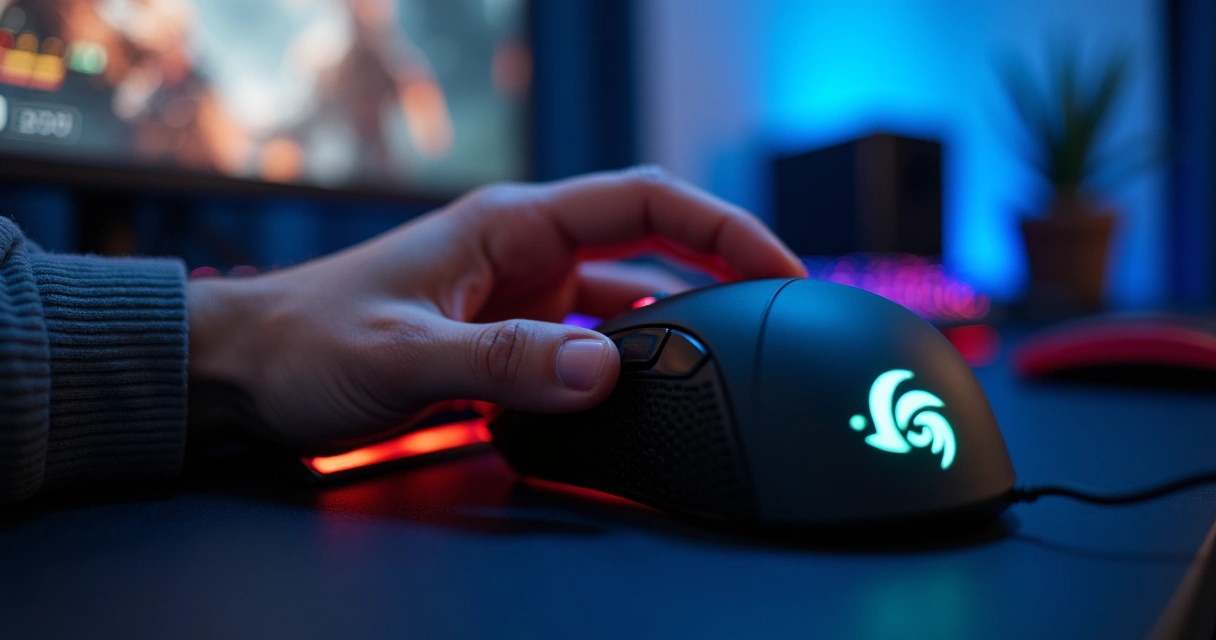
Mouse sensitivity seems basic, but it shapes the whole feel of gaming. We’ve all wrestled with awkward aim or missed shots, only to discover our DPI was way off or inconsistent from game to game.
- Lower DPI settings usually offer more control, especially for shooters, though this may require bigger hand movements.
- Use the same sensitivity for both Windows and in-game settings if possible. It’s easier to develop muscle memory this way.
- Turn off mouse acceleration in Windows. It can throw off your aim.
Whenever you set a new mouse or hop into a fresh title, take a moment to fine-tune these controls. It’s one of those tweaks that you notice immediately—and your aim gets more reliable, your actions feel more like second nature. Sometimes it takes a little back and forth to get it right, but it’s always worth the process.
3. Set up game-specific audio profiles
We’re often surprised by how much clearer and immersive a game can sound just with basic adjustments. Every genre asks for something different. Racing games might need deep engine sounds, while competitive shooters thrive on distinct footstep and gunfire cues.
- Use your sound card or headset software to create custom profiles for each game or genre.
- Emphasize key frequencies—like mids for dialogue, lows for explosions, or highs for footsteps.
- Enable virtual surround sound for competitive play if your headset supports it.
Fine-tuning spatial audio settings helps separate critical sounds from background noise, giving you better awareness and a real in-game edge. We think players don’t use these features nearly enough. Once you try a profile tailored for your favorite game, you’ll probably want it for everything you play.
4. Enable game mode and background app management
Most PCs today offer a ‘game mode,’ which puts the focus of your hardware on the game you’re running. It’s not magic, but it does shut down background updates, pauses scheduled antivirus scans, and sometimes boosts power to your graphics card.
- Turn on your PC’s built-in game mode (try the system settings search; it’s often just a click away).
- Before launching a game, close unused apps, browsers, or background software manually for even smoother results.
- Temporarily disable notifications—no one wants a pop-up in the middle of a boss fight.
This step is about giving your machine fewer distractions and your game more room to run. When more resources are dedicated to your game, there’s less chance of lag spikes or distracting slowdowns. We sometimes forget to do this, but every time we remember, the experience feels just a bit better.
5. Change power plan to performance mode
Gamers sometimes stick to the default ‘balanced’ power mode, not realizing their system is holding back. By setting your power plan to ‘high performance,’ your processor and graphics card are allowed to stretch their legs a bit more, giving you higher and steadier frame rates.
- On Windows, go to the power settings and switch to ‘high performance’ when gaming.
- Laptops in particular benefit—but keep an eye on battery drain and heat.
- Consider switching back to ‘balanced’ when you’re done to save power and keep temps lower.
If you want all your gaming power, you have to ask for it.
We swap power plans depending on whether we’re working or playing. For smooth and reliable frame rates, this trick keeps paying off, especially in graphically demanding games.
6. Optimize in-game graphics: details vs. frame rate
This is where personal taste and hardware reality meet. Some players crave detail—reflections, shadows, blade of grass kind of detail. Others want flawless frame rates even if textures get a little muddy. It’s a balancing act, and sometimes you have to choose.
- Set a target FPS. Ask yourself what feels ‘smooth enough’: 60, 100, 144?
- Test graphics options like shadows, anti-aliasing, and reflections. Dropping these can return huge performance gains.
- Use built-in benchmarks if your game includes them, or just play through a busy scene, making small changes as you go.
Adjust settings until the game both looks and feels good during real gameplay, not just in menus. We find that even small reductions in graphical quality can mean big improvements in responsiveness, and once you’re playing, you often stop noticing the little trade-offs.
7. Fine-tune keybinds and layouts for quick reactions
Every game developer has to design default controls, but those don’t always match our hands, our keyboard, or our reflexes. We believe that personalizing your keybinds is one of the fastest ways to play better and feel more at home—especially if you switch between genres regularly.
- Rearrange action keys for things you use most. Always keep important actions within easy reach—like reloading, crouching, or throwing grenades.
- Consider alternate layouts for accessibility or comfort. Left-handed? Try a mirrored setup.
- Try macros or multi-action buttons on your mouse or keyboard for games that support it.
Your controls should fit you, not the other way around.
Swapping just one or two keys can make a massive difference when every millisecond counts. We always recommend new players spend a session or two just getting the controls right to suit their hands, not anyone else’s.
Bonus: Keep your graphics drivers updated
This might sound more like maintenance than customization, but up-to-date drivers often unlock hidden speed and stability boosts for new games or graphics cards. We sometimes get lazy about this step, but it pays off—often with noticeable improvements the very next time we play. Check the update tool or software that your graphics card uses, and follow the on-screen steps.
Final thoughts
Gaming on a PC gives each of us room to shape our own play style and make our setup fit the way we want to play. These aren’t huge projects—they’re simple changes, sometimes hiding in plain sight. We know from our own experience that once you try them, your sessions can feel more responsive, immersive, and just plain fun.
A few tweaks can make your game feel brand new.
So, next time you have a few minutes before loading up a match or boss fight, try these settings. It’s simple, and it could change everything about how your favorite game feels today.