We have seen it happen countless times: a new game comes out, the excitement builds, you hit ‘Download’—and then something goes wrong. The truth is, installing PC games isn’t always as smooth as we’d hope. Small mistakes can lead to annoying errors, wasted time, or worse, a system that won’t perform as it should. We believe that, by avoiding certain common missteps, anyone can enjoy a much better gaming experience.
Ignoring hardware requirements
We have to mention this first, because it affects performance more than anything else. Every PC game has minimum and recommended requirements. Overlooking these specs can result in:
- Crashes on launch
- Laggy or stuttering gameplay
- Graphical glitches
Always check both the minimum and the recommended hardware requirements for a game before you start the installation process. Not doing so might make your gaming session more frustration than fun.
Sometimes we’re optimistic—maybe too optimistic—thinking our aging hardware can squeeze out a little more life. But a quick look at your RAM, CPU, and GPU compared to the game’s needs will save you headaches. We’ve learned it’s faster to check upfront than troubleshoot later.
Skipping software and driver updates
It’s easy to assume that our PC’s current state is “good enough.” But many games depend on the latest graphics drivers and system updates to run well. The difference can be dramatic. Here’s what can happen if we install games without recent updates:
- Frequent crashes or freezes
- Poor graphics quality or missing visual effects
- Unexpected error messages and failed installations
Old drivers, new problems.
Installing or launching a game with outdated software is risky. We try to make it a habit to visit the official site of our graphics card and check Windows Updates before installing new games. It takes just a few minutes and can prevent so many issues.
Choosing the wrong install location
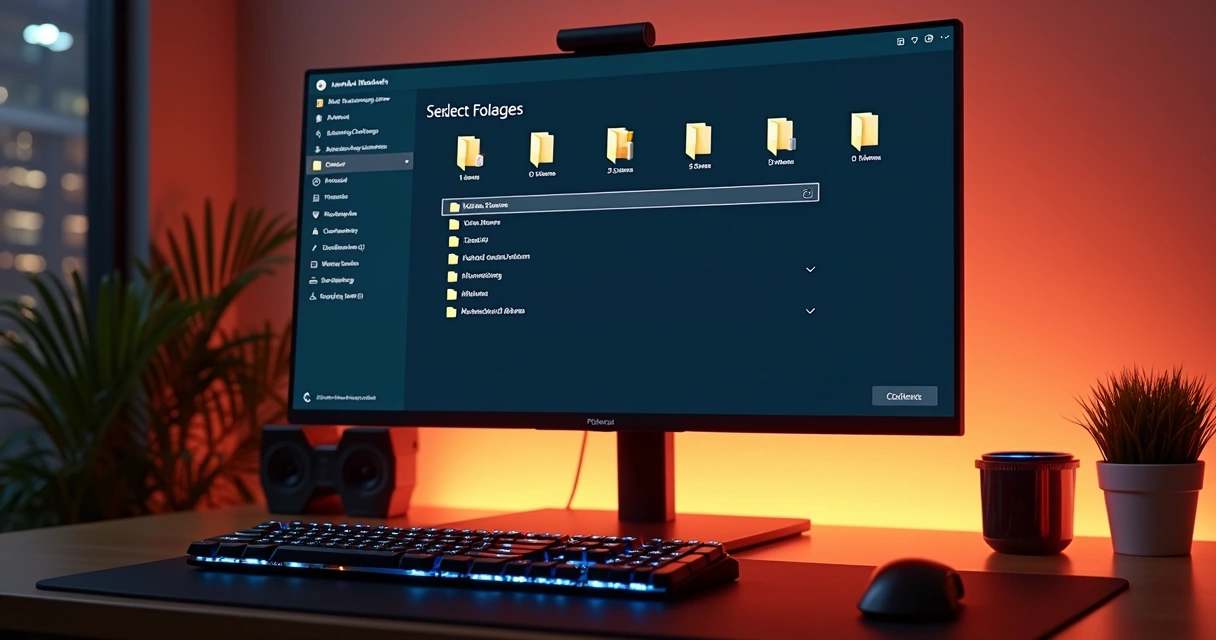
Sometimes, we’re in a hurry and just hit ‘Next’ until the progress bar appears. But picking the right installation folder is more than just a matter of storage space. Issues we’ve seen arise from hasty choices include:
- Insufficient disk space partway through installation
- Games buried in system folders (making them tricky to locate or uninstall)
- Slow load times when installing to older, slower drives
We always recommend using a dedicated folder (like C:Games or a separate SSD) that isn’t the default Windows Program Files directory, especially for large titles. This not only keeps things organized, but also sidesteps problems with permissions or accidental file removals during OS updates.
Not verifying download sources
It’s tempting to click any download link that promises quick access to our favorite game. But unsafe sources can cause issues no genuine gamer wants to deal with:
- Hidden malware or unwanted programs bundled with the installer
- Corrupted files that trigger endless error prompts
- Security warnings or even system-wide problems
We should always download games from official or highly trusted platforms to protect our computers and personal information. A little patience at this stage saves a lot of trouble down the road. Our research shows that this single step can save hours of frustration, or even bigger disasters.
Overlooking antivirus settings
Sometimes our protective software is a bit too strict. It can block parts of a perfectly safe game installer, which makes the process fail or leaves the installed files incomplete. Here is what we’ve seen when antivirus software is not managed during game installs:
- Installation halts due to false positives
- Missing game files or broken features after setup
- Repeated error windows or unexplained crashes
A protective shield can sometimes block the fun.
We recommend temporarily disabling real-time protection (if safe and necessary) or whitelisting trusted installers. Just don’t forget to switch it back on when the process is done.
Skipping the readme and installation notes
We understand most of us are guilty of this one. The readme or install notes can seem dull, but sometimes, they actually contain key info. They might cover:
- Special setup instructions for avoiding errors
- Known compatibility or bug issues
- Tips for improving performance or enabling features
Those few minutes spent reading can prevent much longer troubleshooting sessions later on. We’ve saved ourselves hours by just glancing through these files. Sometimes, there’s surprise advice in there about hardware tweaks or patches that makes all the difference.
Failing to clear up disk space
Modern games are massive. Some easily pass 100 GB, and that doesn’t account for future updates or mods. Neglecting to make enough room can result in:
- Installation errors right at the end, when we thought we were done
- Extra-slow installs as the drive gets close to full
- Performance drops in other programs if the drive is nearly maxed out
Free space is never just a number—it’s peace of mind.
We always recommend checking disk space before you click ‘Install’, and leaving a cushion of space for future updates and save files.
Forgetting about supporting software
Many games need extra software like DirectX, Visual C++ redistributables, or other frameworks. Installers often prompt us to add these, but sometimes we skip right past them. If that happens, the game might not launch, or strange errors can appear. In our experience, accepting these supporting installs is much easier than diagnosing obscure error codes later on.
Not running installers as administrator
Some setups require special permissions to create folders or update system files. Ignoring this and just double-clicking results in errors like “access denied” or incomplete installs. We try to always right-click and select ‘Run as administrator’ for game installers. It’s a simple habit that avoids permissions messes, especially for older games or custom mods.

Not restarting the PC after install
After the excitement of installation, it’s tempting to jump right in. But sometimes background processes or drivers need a reset to finish setting up. We’ve seen situations where:
- The game fails to launch until after a reboot
- Controllers or accessories don’t work properly
- Updates don’t finish installing
A quick reboot after installing a new game can solve problems before they start. It may feel unnecessary, but it often helps everything run better from the start.
Trying to multitask during installation
It’s hard to wait, but running many programs while a huge game is installing can slow the process and even cause conflicts. Sometimes, browser windows or other updates running in the background lead to crashes or file errors. We’ve found it’s best to let the installation have center stage, especially with big-budget titles—it seldom takes as long as we expect.
Jumping straight into multiplayer or mods
The excitement of a fresh install makes us want to connect or customize right away. But if we skip testing the game offline first, we might miss hidden problems like missing files or incorrect settings. This can create more frustration for us and our friends. We suggest always launching a quick single-player session to check:
- Graphics settings
- Controls and responsiveness
- Basic stability
That first checkup paves the way for smooth sessions later, online or with mods.
Final thoughts: Slow down, win more
At the end, we believe patience is the shortcut to gaming happiness. When we double-check system specs, update our drivers, pick the right folder, and pay attention to what’s happening on our screens, we cut out most surprises. The first launch after installation should feel exciting, not nerve-wracking.
The fewer mistakes we make, the more time we have for actual gaming.
We can’t promise a perfect run every single time, but we’re confident you’ll avoid most common problems if you take these tips seriously. Enjoy smoother installs—and more playtime.